Hi Folks,
Today, after a long time, I got a chance to write something, so I thought I’d share my experience with Project Operation. I’ve been working with this product since last year, learning a lot about it and still learning, as we all know it’s still maturing.
Let’s start with some basic and will drive into multiple part afterwords.
Enabling Project Operations Integration in Dynamics 365 Finance & Operations
Microsoft Dynamics 365 Project Operations bridges the gap between front-office project management and back-office financial. Integrating Project Operations with Finance & Operations (F&O) ensures seamless synchronization of project data, resource management, and financial accounting. Let’s explore how to enable this integration and the critical configurations required.
Part – 1: Enable Project Operations Integration
Feature Keys: As of version 10.0.39 and upper, no prerequisite features are required in Feature Management. However, enabling relevant feature keys ensures access to extended functionality Microsoft Learn.
Enabling Project Operation in Dynamics 365 Finance & Operation:
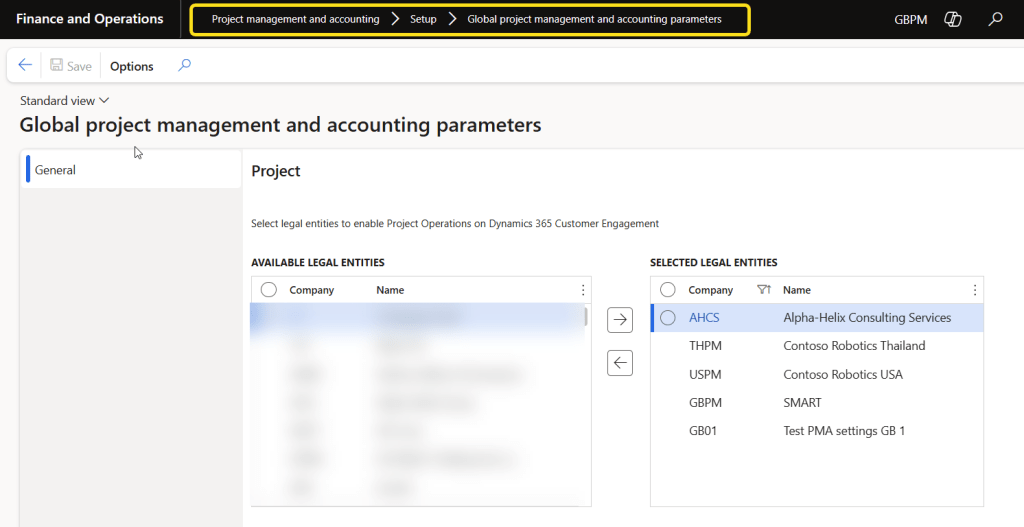
To enable the Project Operation with specific legal entity:
- Go to Module – Project Management & Accounting > Setting > Global project management and accounting parameters
- Select required entity from available legal entities and move it to selected legal entities same as below screenshot:
Dual-Write Setup: Integration relies on dual-write, which synchronizes data between Dataverse (front-office) and F&O (back-office). This ensures real-time consistency across systems Microsoft Learn.
To enable dual-write make sure you have installed all required solution in Power Platform enviornment and apply these solution in dual-wrrite in Dynamics 365 Finance & Operation Microsoft Learn.
To enable the dual-write follow the below steps:
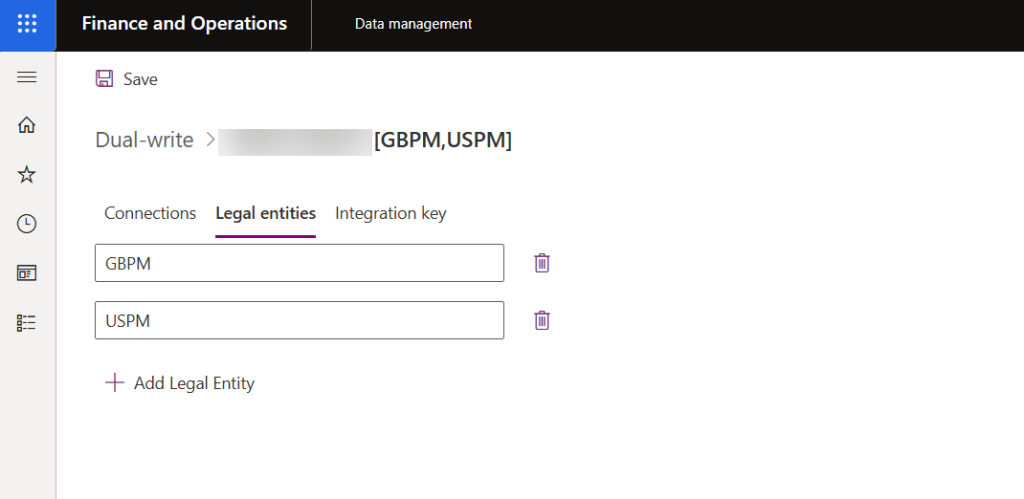
- Go to Data Management Workspace > Dual-Write
- Select required legal entity for dual-write
- Apply required solution in dual-write application
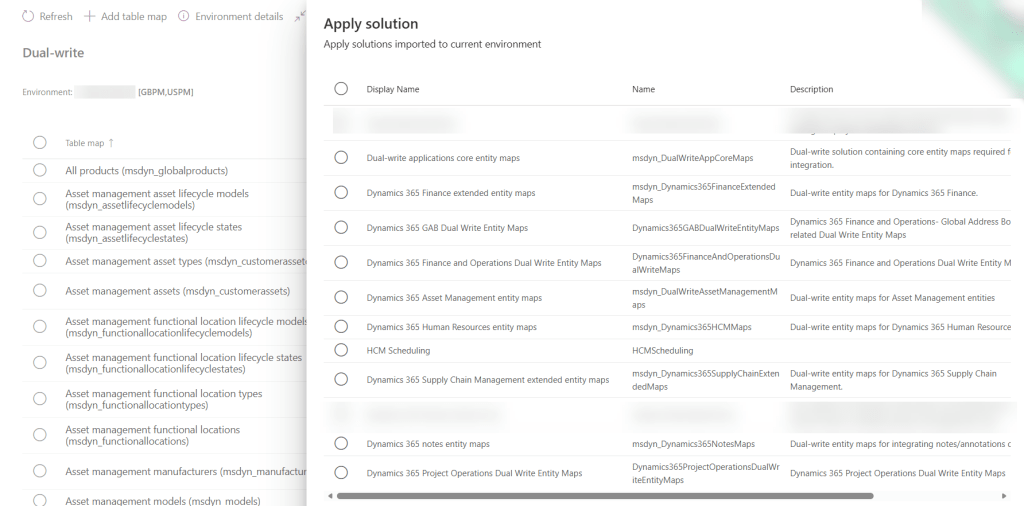
Once solution applied start enabling table maps as required, for full details follow the Microsoft Learn portal.
Once it’s done, it’s time to move to next step, which we will do it in next blog.
Let’s hope that this information will help you.
Until next time.
Bye,
Hasta luego..
Thank you,
CA Gaurangkumar Jani


 Dynamics 365 Finance
Very informative and insightful. Thank you very much.
LikeLike