Hi Folks,
As promised in previous post, this time I have tried to give a detailed understanding. I focus on the creation of Transaction Categories for Integrated Approach. Let’s start.
Creating Transaction Categories in Dynamics 365 Project Operations
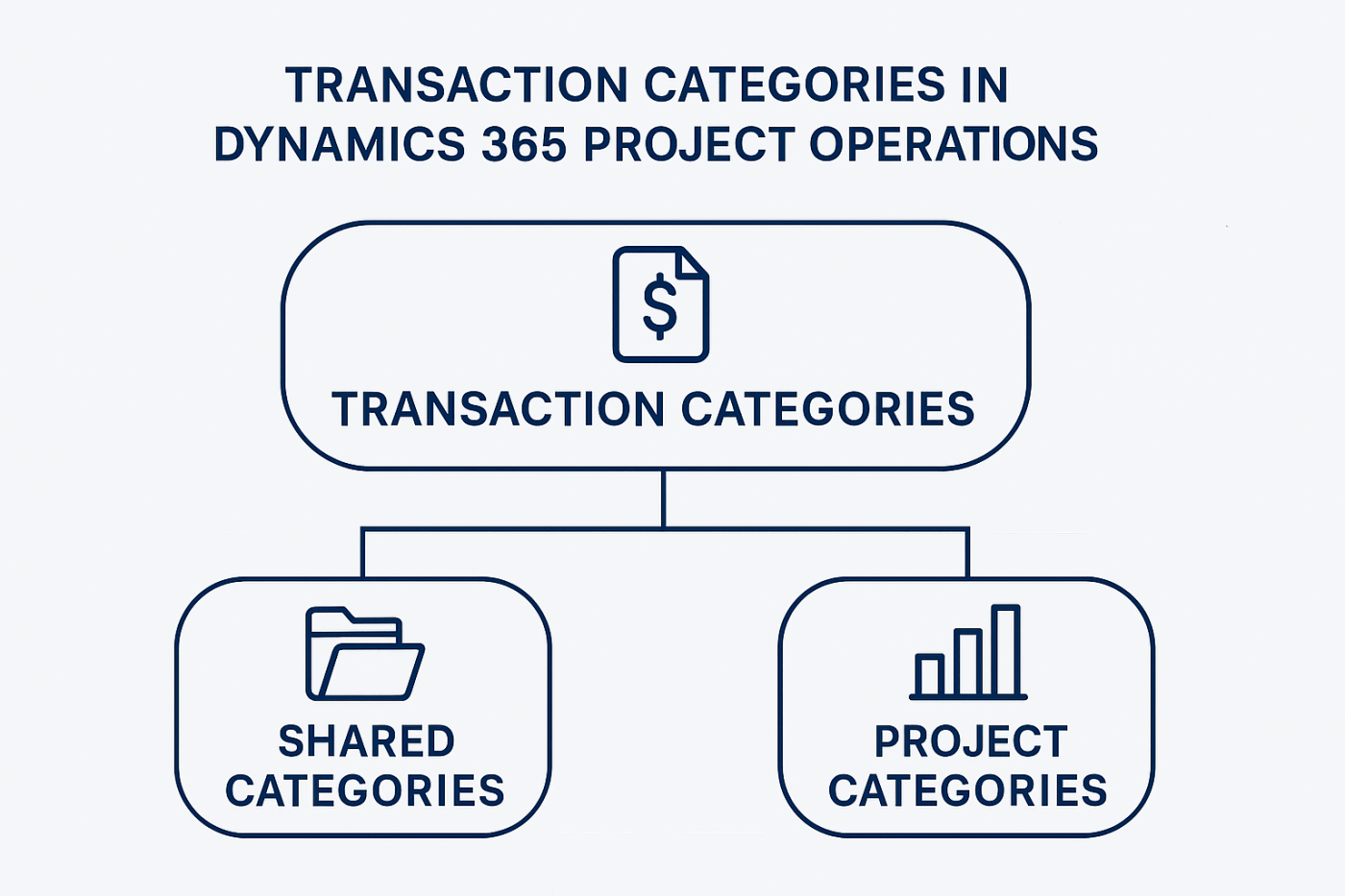
Transaction Categories are a foundational element in Dynamics 365 Project Operations, especially in environments integrated with Dynamics 365 Finance. They determine how project transactions are classified, posted, and reported. Microsoft’s latest documentation clarifies the modern three‑layer structure:
1. Transaction Categories
2. Shared Categories
3. Project Categories
Understanding this hierarchy is essential for correct financial posting, reporting, and operational consistency.
⭐ Understanding the Category Hierarchy
Microsoft’s documentation explains the relationship clearly:
| Layer | Purpose | Scope |
|---|---|---|
| Transaction Categories | Base grouping for project transactions | CE (Dataverse) |
| Shared Categories | Shared across modules and applications | Finance |
| Project Categories | Most granular; used for posting & reporting | Finance (legal entity–specific) |
This means:
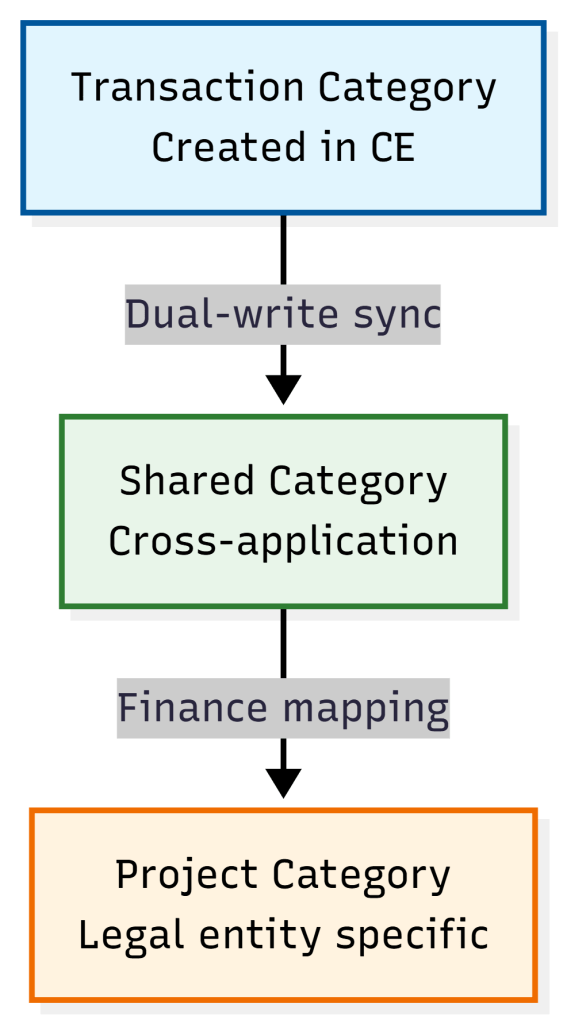
You create Transaction Categories in CE → They sync to Shared Categories → Finance map them to Project Categories.
This is the modern, supported architecture.
🧭 Where to Create Transaction Categories in Project Operations
In the Project Operations (CE) interface:
Project Operations → Setting → Transaction Categories
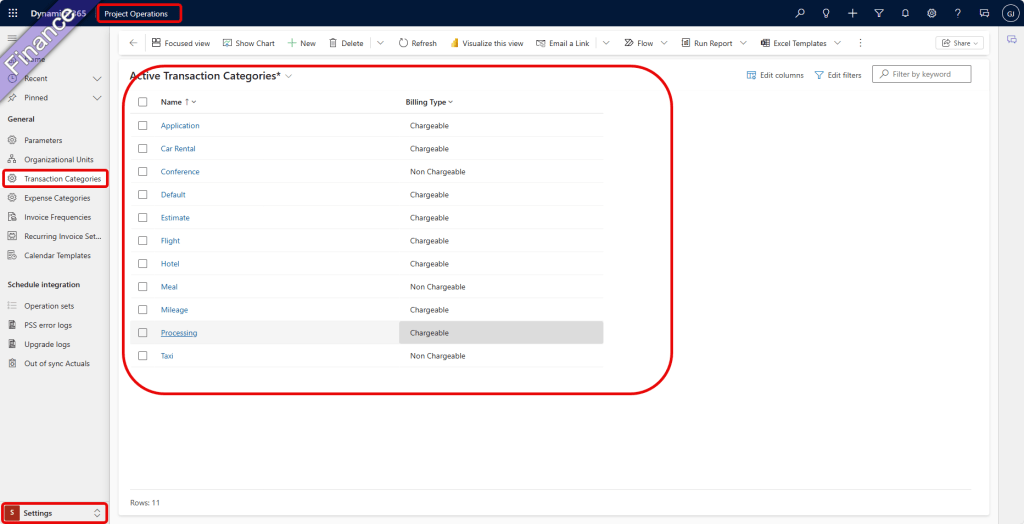
This is the correct location for CE-based category creation.
🛠️ Step-by-Step: Creating a Transaction Category (Latest Method)
1. Navigate to Transaction Categories
Go to:
Project Operations → Setting → Transaction Categories → New
You will see the list of existing categories.
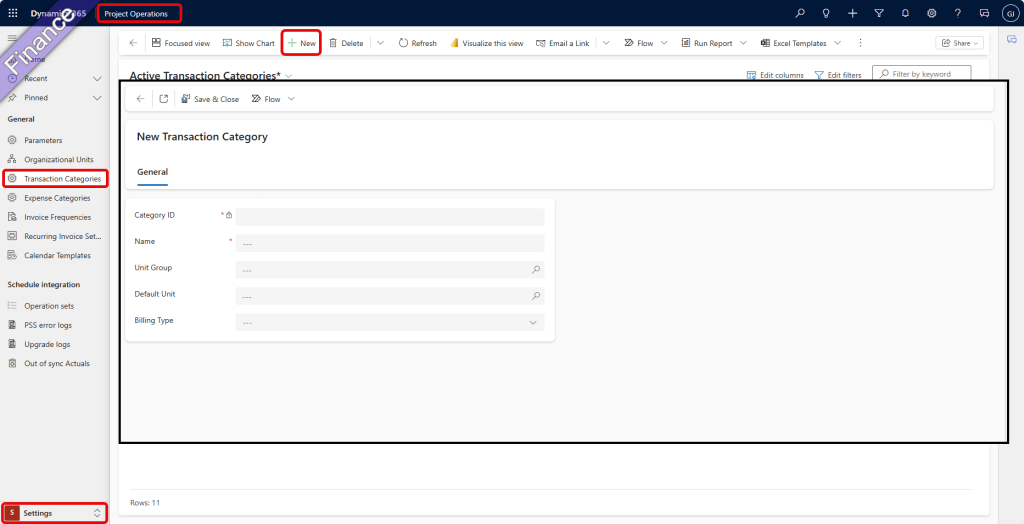
2. Select “New” to Create a Category
You must define:
🔹 Name
A clear, descriptive name such as:
- Travel – Airfare
- Consulting – Senior
- Software Subscription – Annual
3. Define Units and Unit Groups
You may define anyone from below:
- Non-Chargeable
- Chargeable
- Complimentary
- Not Available
This ensures consistency in costing and billing.
4. Define Billing Type
Transaction Categories require:
- Unit Group (e.g., Hours, Units)
- Unit (e.g., Hour, Each)
This ensures consistency in costing and billing.
5. Save — and Let Dual-Write Sync Handle the Rest
In integrated deployments:
- The Transaction Category syncs to a Transaction Category in Finance.
- The Transaction Category will create multiple (for each transaction type) Shared Category in Finance.
- Finance users then map Shared Categories to Project Categories. (Will cover in separate blog)
- Project Categories drive posting, ledger integration, and reporting. (Will cover in separate blog)
📘 Example: Creating “Flight”
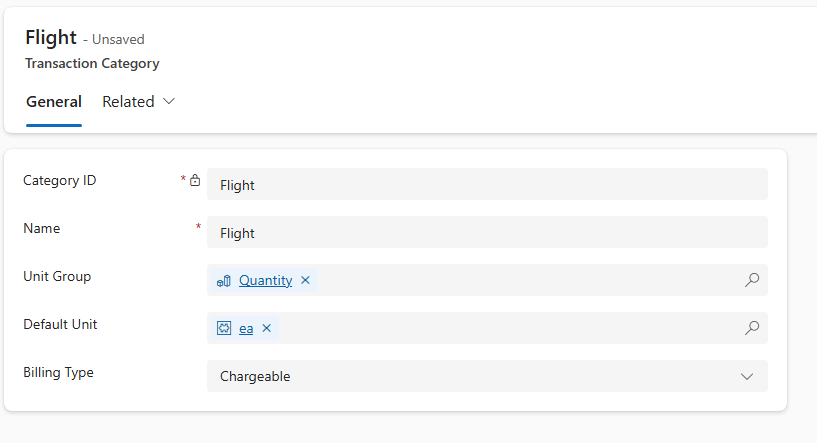
This ensures the category flows correctly from CE → Finance.
Check in Project Management and Accounting → Setup → Categories → Transaction Categories
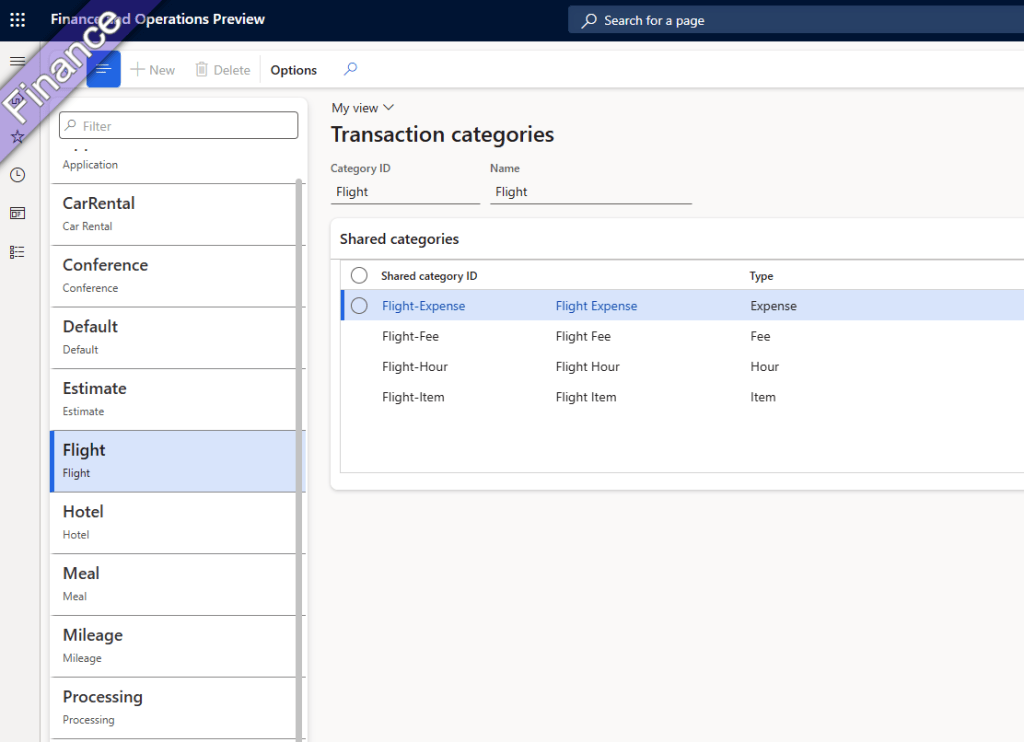
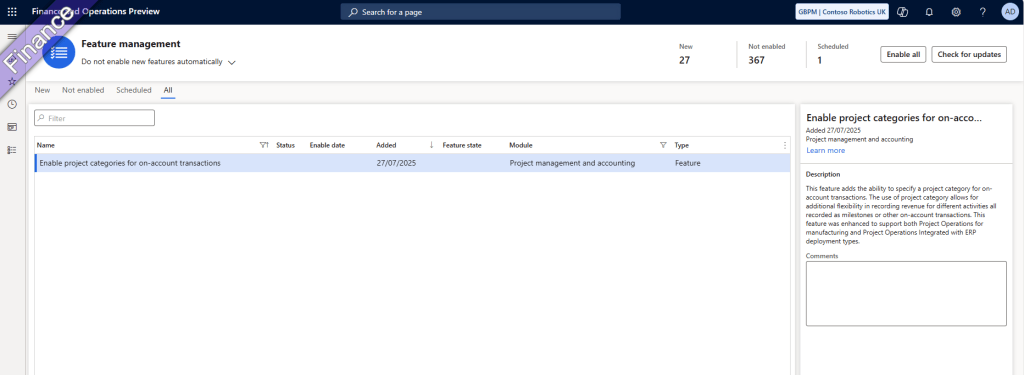
If you need any categories for “On-Account” Transaction type, you must enable the following feature first. Do this before creating a Transaction category in Project Operation.
Feature — Enable project categories for on-account transactions
🧩 Best Practices (Aligned with Microsoft’s Current Guidance)
1. Align CE and Finance Teams Early
Because categories flow across systems, both teams must agree on:
- Naming conventions
- Category groups
- Posting profiles
- GL accounts
2. Keep the Category Structure Clean
Avoid unnecessary granularity.
Use:
- Travel – Taxi
Not: - Travel – Taxi – London
3. Use Consistent Naming Conventions
Examples:
- LAB – Consulting – Senior
- EXP – Travel – Airfare
- MAT – Hardware – Laptop
4. Understand the Three-Layer Model
This is the biggest change from PSA days.
You must think in terms of:
Transaction Category → Shared Category → Project Category (And then Expense Category)
5. Document the Category Strategy
Maintain a shared reference, including:
- Category name
- Type
- Purpose
- Finance mapping
- Posting rules
This prevents misalignment across teams.
🎯 Conclusion
The creation of Transaction Categories in Dynamics 365 Project Operations is no longer a simple CE-only configuration. With Microsoft’s modern architecture, categories flow through a structured hierarchy that ensures accurate posting, reporting, and financial governance.
By following the latest Microsoft documentation, you ensure a scalable and compliant category setup. Aligning CE and Finance teams also contributes to a future-proof configuration.
Once it’s done, it’s time to move to next step, which we will do it in next blog.
Let’s hope that this information will help you.
Until next time.
Bye,
Thank you,
CA Gaurangkumar Jani


 Dynamics 365 Finance
Leave a comment